![Rebrand Logo Mark No ISO.png]](https://knowledge.sitemarker.com/hs-fs/hubfs/Rebrand%20Logo%20Mark%20No%20ISO.png?height=40&name=Rebrand%20Logo%20Mark%20No%20ISO.png)
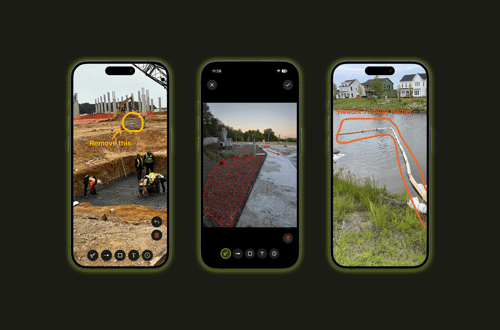
Point to what matters. Right on the photo.
Photos show everything, but not what specifically matters. Photo Markup lets you draw arrows, circle issues, highlight work areas, and add text notes directly on any site photo. Before you leave the field.
What is it? A built-in annotation tool for any photo captured or stored on a pin. Draw arrows, circles, rectangles, and freehand lines. Add hatching to highlight a work area. Drop text notes with specific callouts. All of it happens on the image itself, right from your mobile device or desktop.
Why did we build it? A raw photo forces explanation. You take the picture, then spend the next ten minutes texting context. "See the crack on the left side?" "No, the other left." "Near the top of the curb, not the gutter." Everyone has been in that loop. A marked-up photo explains itself. The arrow points to the problem. The circle isolates the deficiency. The note says exactly what needs to happen. No follow-up questions. No guessing.
How does it work?
- When you take a photo on a pin and tap the Markup tool by the image. The annotation toolbar opens with your drawing options.
- Draw an arrow to direct attention to a specific issue. Circle a deficiency or area of concern. Highlight or hatch a broader work zone. Add a text note with instructions, measurements, or reference callouts.
- Save the markup. The annotated image lives on the pin alongside the original, so you always have both the raw capture and the version with context. At any time, you can download the current Annotated state or the Original image.
- When you generate a report, the marked-up photo carries through. Your stakeholders, clients, and project team see exactly what you saw and exactly what you flagged, without needing a phone call to interpret it.
Where does this live?
- Pins and Worklogs
- Site Notes and Site Meetings
Who is this for? Field crews documenting punch list items. Inspectors flagging deficiencies during site walks. Project managers circling progress or problem areas for owner updates. SWPPP coordinators highlighting BMP conditions. Anyone who has ever taken a site photo and then had to explain what it was actually showing.
What changed from before? Previously, if you wanted to annotate a site photo, you had to pull it into a separate app, mark it up, save it, and re-upload it. Or you just sent the raw image and typed out the explanation. Now the annotation happens where the photo lives. Capture, mark up, save, and move on. The context stays attached to the pin and flows into your reports automatically