![Rebrand Logo Mark No ISO.png]](https://knowledge.sitemarker.com/hs-fs/hubfs/Rebrand%20Logo%20Mark%20No%20ISO.png?height=40&name=Rebrand%20Logo%20Mark%20No%20ISO.png)
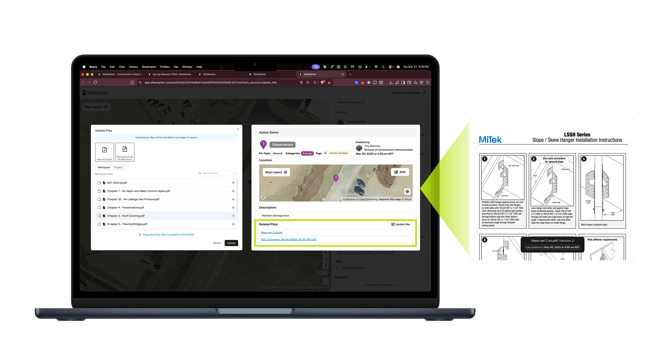
Upload detail sheets, installation guides, and product specs to a shared workspace library. Attach them directly to pins, so the standard and the site evidence are always in the same place.
What is it? A shared workspace file library and pin-level file attachments. Your team uploads reference documents once at the workspace level, then attaches them to individual pins as needed. Attached files appear on the pin detail view and carry through to your reports automatically.
Why did we build it? Critical files scatter. Specs live in email. Detail sheets sit in a shared drive folder someone bookmarked six months ago. Installation guides get texted around in a group chat. When your field team needs to reference the standard while documenting site conditions, they shouldn't have to leave the app to find it. The spec and the photo belong in the same place.
How does it work?
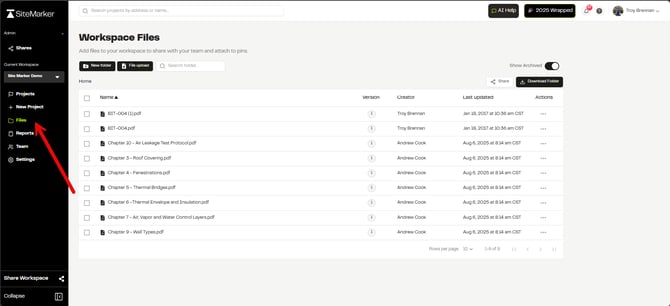
- Go to Workspace Files in your sidebar and upload your documents. PDFs, detail sheets, spec books, whatever your team references in the field. Organize them into folders if you want. See more on files here.
- Open any pin and click Update Files. You'll see your recent files, workspace files, and project files in one picker. Select the documents that apply to that pin and hit Update.
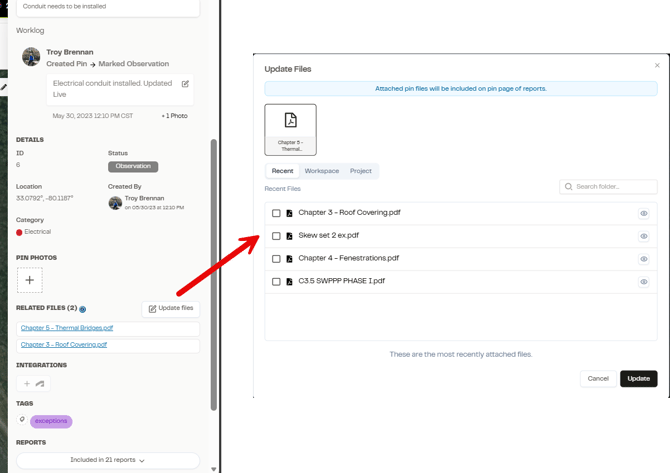
- The attached files now show under Related Files on the pin detail panel. Your team can open them right there, next to the photos, notes, and worklog entries.
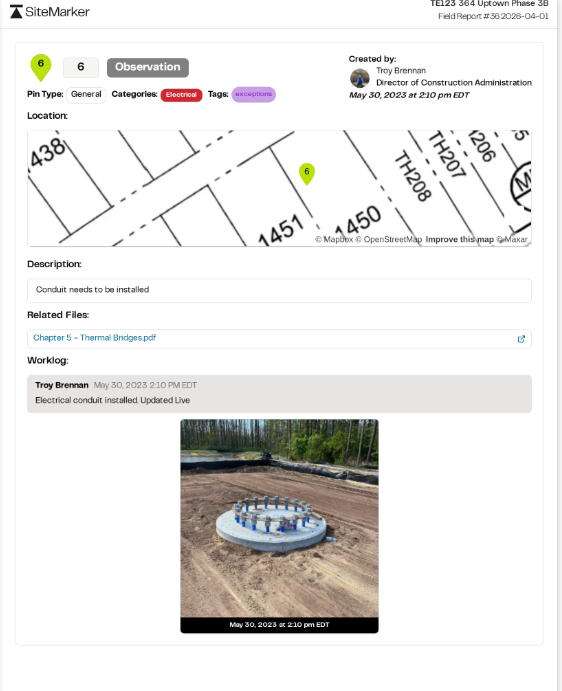
- When you generate a report, attached files appear on the pin's report page. The site photo, the location, the notes, and the reference document, all on one page. No flipping between systems to cross-check what was installed against what was specified.
Can I attach files to a site meeting? Yes. Submittals, RFI responses and other project files can be linked to a site meeting, on web or in the mobile app, so the meeting record holds the documents you talked through.
- Open the project and start a new meeting, or open an existing one.
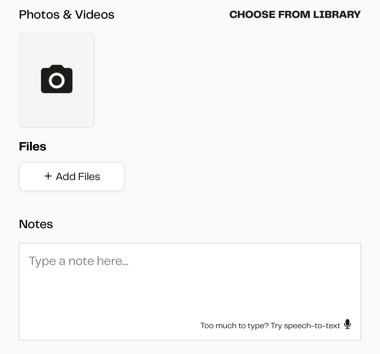
- Under Files, tap Add Files and choose the files to attach.
- Save the meeting. The files stay with the meeting record for anyone who opens it later.
Who is this for? Any team that references standards, specs, or guides while documenting field conditions. Inspectors comparing installed work against approved drawings. Project managers tying punch list items to the relevant detail sheet. SWPPP coordinators linking BMPs to their installation specifications.
What changed from before? Previously, reference documents lived outside SiteMarker. Your team would capture the photo in the app, then open a separate folder or email to pull up the spec. Now both live on the pin, and both show up on the report. One source of truth, from the field to the page.
Uploading from the field? Files you add from the mobile app can be attached the same way. See How do I upload files from the mobile app?