![Rebrand Logo Mark No ISO.png]](https://knowledge.sitemarker.com/hs-fs/hubfs/Rebrand%20Logo%20Mark%20No%20ISO.png?height=40&name=Rebrand%20Logo%20Mark%20No%20ISO.png)
You can bring a list of survey points or stake-out locations straight onto your project map. Upload a CSV of coordinates, or a PNEZD export from AutoCAD, and SiteMarker turns every row into a pin in the right place. Note that this can only be done on the web admin (app.sitemarker.com).
Supported files
- Latitude and longitude: a CSV with coordinates in decimal degrees, for example 40.51470382, -112.05623506.
- PNEZD from AutoCAD: a comma-delimited file in the order Point, Northing, Easting, Z (elevation), Description.
How to import
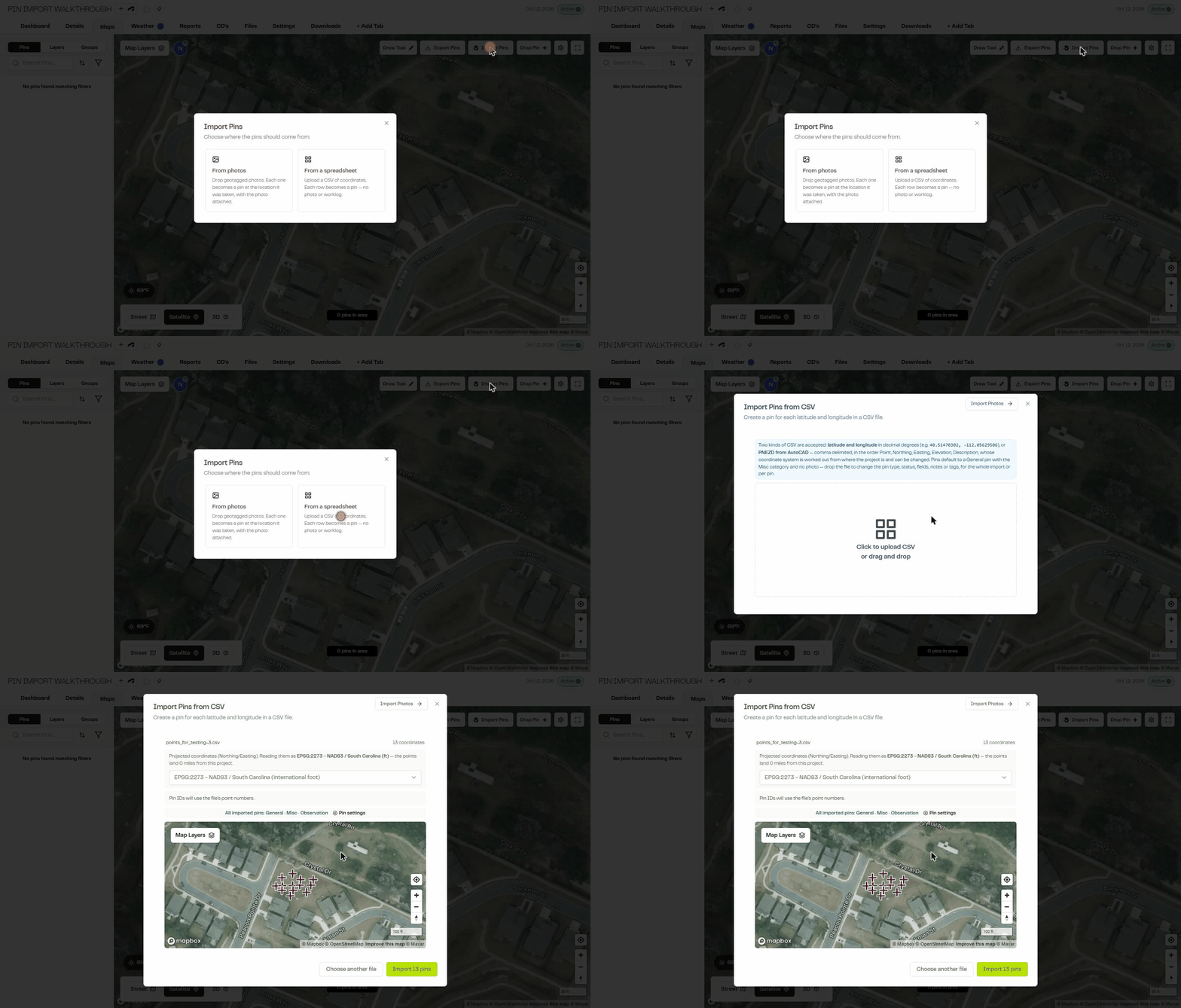
- Open the project and click on "Maps".
- Click Import Pins and choose From a spreadsheet.
- Drag your file into the box, or click to upload it.
- For a PNEZD file, check the coordinate system. SiteMarker works it out from the project's location and tells you which one it used and how far the points land from the project. If it isn't the one your surveyor used, pick the right one from the list.
- Check the preview pins on the map.
- Optional: click Pin settings to set the pin type, status, category and other details before importing. See How do I customize imported pins?
- Click Import. Nothing is created until you do.
Things to know
- Set the project location first. The coordinate system is chosen from where the project is. If the preview says the points land miles away, check that the project is in the right place.
- Confirm the coordinate system. Neighboring coordinate systems can place the same points a few feet apart. If you're not sure which one the file uses, ask the surveyor who exported it.
- It won't guess blindly. If no coordinate system near the project places the points within 30 miles, SiteMarker stops and asks you to choose one.
- Survey details carry through. Elevation becomes the pin's altitude and the description becomes the pin's description.
- Pin IDs. When your workspace uses custom pin IDs and every row has a unique point number, the point numbers become the pin IDs.
- Bad rows are skipped. Rows that are blank, out of range or exactly 0, 0 are left out and listed by line number.
- Default pin settings. Imported pins arrive as General pins, category Misc, status Observation, with no photo, unless you change them in Pin settings.